Table of Contents
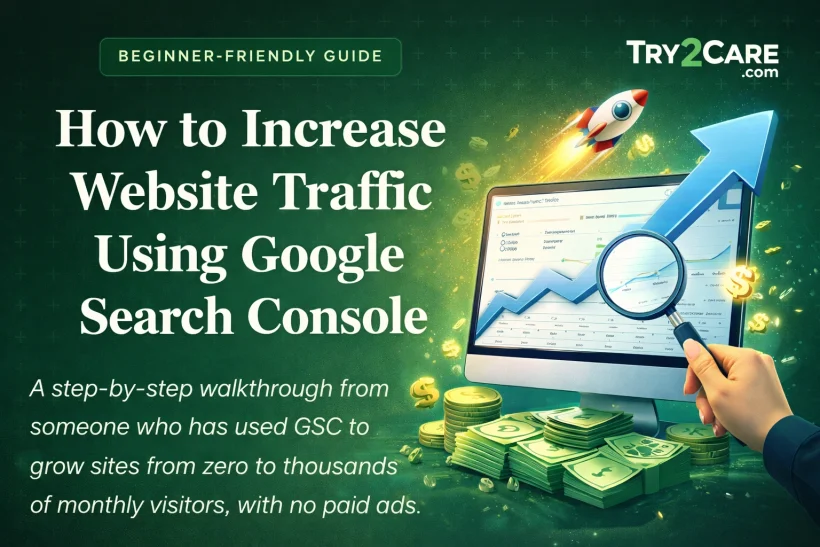
ToggleHow to Increase Website Traffic Using Google Search Console
A step-by-step walkthrough from someone who has used GSC to grow sites from zero to thousands of monthly visitors, with no paid ads.
Let me be completely honest with you: when I first launched my blog, I had no idea what was actually driving traffic to my site. I was writing posts, sharing them on social media, and hoping for the best. Sound familiar?
Then a friend told me to stop guessing and start looking at the data. She introduced me to Google Search Console (GSC), a completely free tool from Google, and within two weeks, I had identified three major problems that were quietly strangling my traffic. Once I fixed them, my organic visitors nearly doubled within 60 days.
In this guide, I'll walk you through exactly how to use Google Search Console to grow your website traffic. We'll go step by step, and I'll share real examples along the way so nothing feels abstract or confusing.
Whether you've just learned the basics of creating a website and earning your first dollar online, or you've been at it for years and feel stuck, this guide is for you.
What Is Google Search Console, Exactly?
Google Search Console is a free tool provided by Google that helps you understand how your website performs in Google's search results. Think of it as a direct line of communication between you and Google. It tells you:
- Which search terms (keywords) people used to find your site
- Which pages are getting clicks from Google
- Whether Google can properly read and index your pages
- If your site has any technical problems hurting your rankings
- How fast your pages load (and how that affects your rankings)
The best part? It's 100% free. You don't need a paid subscription to any SEO tool. You just need a Google account and a website.
How to Set Up Google Search Console (Takes Under 10 Minutes)
Before we get into the good stuff, you need to have GSC connected to your site. Here's how to do it quickly:
Go to search.google.com/search-console
Sign in with your Google account. If you already use Gmail or Google Analytics, use the same account for convenience.
Add your property (your website)
Choose "Domain" for the broadest tracking (covers http, https, www, non-www) or "URL prefix" for a specific version of your site. I always recommend the Domain option.
Verify ownership
Google needs to confirm you own the site. The easiest method is adding a DNS TXT record if you have access to your domain registrar (e.g., Namecheap, GoDaddy). WordPress users can also verify through the Google Site Kit plugin in seconds.
Submit your sitemap
A sitemap is a file that lists all your pages so Google knows what to crawl. In GSC, go to Sitemaps in the left menu and enter yourdomain.com/sitemap.xml, most site builders and CMS platforms generate this automatically.
Wait 24-72 hours for data to appear
New sites may take a few days to populate data. Established sites will see historical data within a day or two. Go make yourself a cup of tea, it's worth the wait.
How to Add a Sitemap in Google Search Console
A sitemap is your way of handing Google a complete map of your site. Without one, Google has to discover your pages on its own, which can take weeks or longer. Submitting a sitemap speeds that up dramatically.
/sitemap_index.xml
/atom.xml?redirect=false
- Discovered URLs match your total page count
- Status shows "Success"
- New posts appear indexed within 1 to 3 days
- No errors or warnings in the report
- Large gap between discovered and indexed URLs
- "Couldn't fetch" status after submission
- Zero URLs discovered after 24 hours
- Sitemap returns a 404 when you open it
One thing most people skip: after submitting, scroll down to the "Indexed" count and compare it to the "Discovered" count. If Google found 120 URLs but only indexed 40, that tells you there are 80 pages worth digging into — they could have thin content, duplicate issues, or be accidentally blocked by your robots.txt file.
If you're using WordPress, the Google Site Kit plugin is the simplest way to verify your site AND connect Google Analytics at the same time. It's official, free, and takes about two minutes to set up. If you're still deciding between platforms, my guide on choosing between Blogger and WordPress for your specific goals can help you pick the right foundation before you build.
Using GSC to Find Your Best Keyword Opportunities
This is where the magic starts. The Performance report in Google Search Console is, in my opinion, the single most underused tool in all of SEO, and it's sitting right there, free, waiting for you.
Here's how to find it: In the left sidebar, click Performance → Search results. You'll see a graph showing your clicks and impressions over time. Make sure all four boxes at the top are checked: Total Clicks, Total Impressions, Average CTR, and Average Position.
"Impressions without clicks is money being left on the table. Your job is to figure out why people aren't clicking, and fix it."
Now scroll down and click the Queries tab. This shows you every single keyword your site has appeared for in Google search results. This is pure gold. Here's what to look for:
The "Sweet Spot" Keywords, Positions 4 to 15
In my experience, the biggest traffic wins come from keywords where your site already ranks on pages 1 or 2 (positions 4-15) but hasn't yet reached the top 3 positions. Why?
Because most of the clicks go to positions 1-3. Moving from position 8 to position 3 can multiply your traffic from that keyword by 5 times or more.
🔴 Low opportunity (position 14+) | 🟡 Optimize now (positions 5-14) | 🟢 Maintain & expand (positions 1-4)
Looking at this example, "blog post ideas for beginners" is sitting at position 7.8 with 3,200 monthly impressions. That's a juicy target. The goal would be to get that post into the top 3, which could realistically increase its clicks by 300% or more.
So how do you actually improve a page's ranking once you've identified it? Here's what I do:
- Update the content, Add more depth, fresher stats, and a more detailed answer to the search query
- Improve the title tag and meta description, Make them more compelling so people actually want to click
- Add internal links from other strong pages on your site pointing to this page
- Check the search intent, Are people looking for a list, a how-to guide, or a comparison? Match what they want
- Add structured data (schema markup), This can win you rich snippets that stand out in search results. If you're not sure what that means, my guide explaining schema markup in plain, simple terms is a great starting point
Finding Topics You Didn't Know You Ranked For
Here's something that genuinely surprised me the first time I did it. When I sorted my queries by Impressions (highest first), I discovered my blog was showing up in Google for hundreds of keywords I had never specifically targeted.
Some of them were getting thousands of impressions per month but had a CTR of less than 1%.
That's like having a shop in a busy mall but keeping the doors locked. You're visible, but nobody's getting in.
For each of these underperforming keywords, I created a new, dedicated piece of content specifically answering that query. Within 60 days, several of those posts had climbed into the top 5 positions.
Fixing Errors That Are Silently Killing Your Traffic
This is one of the most overlooked ways to boost traffic, and it requires no writing at all. In the left sidebar of GSC, find Indexing → Pages. This report shows Google which of your pages it has successfully indexed, and which it hasn't.
Pages that aren't indexed don't appear in Google search at all. That means no traffic, ever, regardless of how good the content is.
Not Found
The page doesn't exist anymore. This happens with deleted posts or changed URLs. Fix: restore the page or set up a 301 redirect.
Crawled - Not Indexed
Google saw the page but decided not to include it in search. Often means thin content or duplicate content. Fix: improve the quality and depth.
Soft 404
The page returns a 200 status but shows "no results" or nearly empty content. Fix: either add content or block the page from indexing.
Redirect
The URL permanently moved. If done correctly, this passes ranking power to the new URL. Fix: ensure redirects are pointing to the right destination.
When I first audited my site, I had 27 pages showing "Crawled - currently not indexed." That was 27 pieces of content essentially invisible to Google.
After improving eight of them (adding more depth and better structure) and redirecting or removing the rest, I saw a 23% increase in organic impressions within the following 45 days.
Don't rush to request indexing for every page you've ever published. Only request indexing for pages that are genuinely useful and high-quality. Google remembers patterns. If you consistently submit low-quality pages for indexing, it can actually hurt your site's overall crawl budget and trust.
How to Use the URL Inspection Tool
At the top of the GSC dashboard is a search bar, this is the URL Inspection Tool. Paste in any URL from your site and GSC will tell you exactly what Google sees when it crawls that page. This is incredibly useful for diagnosing individual page problems.
I use this tool every time I publish a new article. After publishing, I paste the URL in, hit "Request Indexing," and Google typically indexes new pages within 24-48 hours instead of waiting weeks.
Improving Site Performance, Because Speed Is a Ranking Factor
Google officially uses page experience as part of its ranking algorithm, which means a slow or clunky website will rank lower than a fast one, even if the content is better. Google Search Console has a dedicated section called Core Web Vitals that tells you exactly how your pages perform.
Here's what each of the three main signals means, in plain English:
To see your Core Web Vitals in GSC, go to Experience → Core Web Vitals in the left sidebar. You'll see a breakdown of pages marked as "Poor," "Needs improvement," and "Good."
Start with the "Poor" pages, those are actively hurting your rankings. The most common fixes are:
- Large, unoptimized images, Compress images using tools like Squoosh or ShortPixel before uploading
- No image dimensions set, Always specify width and height on images so the browser knows how much space to reserve
- Unoptimized third-party scripts, Remove plugins or widgets you don't truly need. Each one adds load time.
- No caching, Use a caching plugin (like W3 Total Cache or LiteSpeed Cache on WordPress) to serve pages faster
After fixing my own Core Web Vitals issues, mainly image compression and switching to a faster host, my LCP dropped from 4.2 seconds to 1.8 seconds. That single change correlated with a 12% improvement in organic rankings across my top 20 posts.
If you're just getting started and haven't built your site yet, choosing the right platform from the beginning makes a huge difference to performance. My detailed walkthrough on creating a website from scratch and monetizing it the right way covers platform choices, hosting, and speed optimization right from day one.
Using the Links Report to Build Your Site's Authority
Backlinks, links from other websites pointing to yours, are one of Google's most important ranking signals. The Links report in GSC (found under the "Links" section in the left sidebar) shows you two types of links:
- External links: Links from other websites pointing to your site
- Internal links: Links between your own pages
Both matter more than most people realize.
| What to Look At | What It Tells You | Action to Take | Priority |
|---|---|---|---|
| Top linked pages (external) | Which pages other sites love to link to | Double down, create more content around the same topic; add links from these pages to newer posts | High |
| Top linking sites | Which domains are sending you the most link equity | Build relationships with these sites; pitch guest posts or collaboration ideas | High |
| Top linking text | The anchor text used when linking to your site | If it's all "click here" or your brand name, reach out to diversify anchor text to your target keywords | Medium |
| Top internally linked pages | Which pages you link to most from within your own site | Make sure your most important pages are your most internally linked, not neglected orphan pages | High |
| Pages with few internal links | Content Google might not be discovering properly | Add contextual internal links from popular posts to these neglected pages | Medium |
Internal links are completely within your control, and they make a bigger difference than most bloggers appreciate.
I once took a post that was stuck at position 11 for six months, added three strong internal links to it from my most popular articles, and watched it climb to position 4 within three weeks. That's the power of deliberate internal linking.
Mobile Usability: Don't Ignore Half Your Audience
Over 60% of all Google searches happen on mobile devices. If your site doesn't work well on a phone, you're essentially shutting out the majority of your potential visitors.
GSC's Mobile Usability report (under Experience) tells you exactly which pages have problems on mobile, such as:
- Text that's too small to read without zooming
- Clickable elements (buttons, links) that are too close together to tap accurately
- Content that's wider than the screen, causing horizontal scrolling
These are easy wins. Most of them can be fixed in your theme or page builder settings in under an hour. Google prioritizes mobile-friendly pages in its rankings, this is non-negotiable.
Enhancements: Getting Rich Results in Google
Have you ever searched for a recipe and seen star ratings, cooking time, and a photo directly in the Google results? Those are called rich results, and they get dramatically higher click-through rates than plain blue links.
GSC's Enhancements section shows you whether Google has detected structured data (schema markup) on your pages, and whether it's valid or has errors. If you have recipe, article, FAQ, or review schema implemented, any problems will show up here.
- A super easy, beginner-friendly explanation of schema markup and how to add it yourself, Understanding schema is the key to unlocking rich results in Google
- How to get approved for Google AdSense Partnership Program and start earning from your traffic, Once your traffic is growing, this is the natural next step to turning visitors into income
My Personal GSC Monitoring Routine (Steal This)
One of the questions I get asked most is: "How often should I check Google Search Console?" Here's the honest answer, checking it every single day is overkill and will drive you crazy. But ignoring it for months means missing problems while they quietly compound.
Here's the routine I personally follow:
| Frequency | What to Check | Why It Matters | Time Needed |
|---|---|---|---|
| Daily | Check email alerts from GSC for any critical issues | Catches sudden crawl errors, security issues, or manual penalties early | 2 min |
| Weekly | Performance report: clicks, impressions, top keywords | Spot traffic drops or unexpected keyword gains quickly | 15 min |
| Monthly | Full indexing report, Core Web Vitals, mobile usability | Ensures your technical SEO health stays clean as you add new content | 45 min |
| Quarterly | Deep keyword analysis, links report, content audit | Strategic review, which content to update, expand, or retire | 2-3 hours |
I set up GSC email alerts for critical issues so I'm automatically notified if something major breaks. Everything else I review on the schedule above. This approach keeps me informed without turning into an analytics addict, which is a real trap for bloggers!
Combining GSC Data with Other Traffic Strategies
Google Search Console is essential, but it's one piece of a broader traffic strategy. The strongest websites I've worked on don't rely on organic search alone, they diversify. Here's how I think about it:
Search traffic is stable and compounds over time, but it's slow to start. It took my first blog about six months before I had consistent organic visitors.
During that early phase, I was building an audience through other channels, mainly YouTube, which gave me faster feedback and a community I could then direct to my blog.
If you're thinking about adding video to your strategy, I've put together resources to help you get started without any upfront investment: a complete guide to launching your YouTube channel without spending a penny and, once you've got the basics down, the 14 strategies I've personally used to grow a YouTube channel faster than most people think possible.
The synergy between a well-optimized website and an active YouTube channel is genuinely powerful. Your videos rank in YouTube search, which builds your brand. Your blog ranks in Google search, which builds your authority. Each channel feeds the other.
Think of Google Search Console as your site's health dashboard. It won't do the work for you, but it will tell you exactly where to focus your effort. The bloggers who grow fastest aren't necessarily the best writers, they're the ones who pay attention to what the data is actually saying and act on it consistently.
Quick Wins Checklist, Do These First
If all of this feels overwhelming, that's completely normal. Start here, these are the highest-impact, lowest-effort actions you can take with Google Search Console right now:
| # | Action | Where in GSC | Expected Impact | Difficulty |
|---|---|---|---|---|
| 1 | Find keywords in positions 5-15 and update those posts | Performance → Queries (sort by Impressions) | 🔺🔺🔺 Very High | Medium |
| 2 | Fix all "Crawled - not indexed" pages | Indexing → Pages | 🔺🔺🔺 Very High | Easy |
| 3 | Request indexing for your 5 most important pages | URL Inspection Tool | 🔺🔺 High | Easy |
| 4 | Fix any "Poor" Core Web Vitals pages (start with images) | Experience → Core Web Vitals | 🔺🔺 High | Medium |
| 5 | Fix mobile usability errors | Experience → Mobile Usability | 🔺🔺 High | Easy |
| 6 | Add internal links to your top-traffic pages pointing to newer posts | Links → Internal Links | 🔺🔺 High | Easy |
| 7 | Write new dedicated posts for high-impression / low-CTR keywords | Performance → Queries | 🔺🔺🔺 Very High | Takes Time |
Final Thoughts
Growing website traffic through organic search is genuinely one of the most rewarding things I've done online. It's slow at first, I won't sugarcoat that, but once it gets going, it compounds in a way that paid advertising simply can't match. A post I wrote three years ago still brings in over 4,000 visitors every single month without me touching it.
Google Search Console is the engine room of that whole process. It's not glamorous. It's not as exciting as viral social media posts. But it's the tool that gives you real, actionable data about what's working and what isn't, and that information is priceless.
Start with the quick wins. Pick one thing from this guide and do it today. Then come back next week and do another. Consistency beats perfection every single time. The websites that win in search aren't always the biggest or the most technically perfect, they're the ones that keep showing up and keep improving.
You've got this. 💪
Questions? Drop Them Below!
If you're stuck, confused by anything in this guide, or just want to share a win, I'd genuinely love to hear from you. Leave a comment below and I'll personally respond. No question is too basic. I've been where you are, and I know how much a clear answer can help.
💬 Leave a CommentI read and reply to every single comment. Let's figure this out together.